
How to Detect WordPress Plugin Conflicts? (2026 Technical & SEO Guide)
Plugin conflicts are one of the most common causes of errors, broken layouts, and performance issues in WordPress—especially on sites running many plugins.
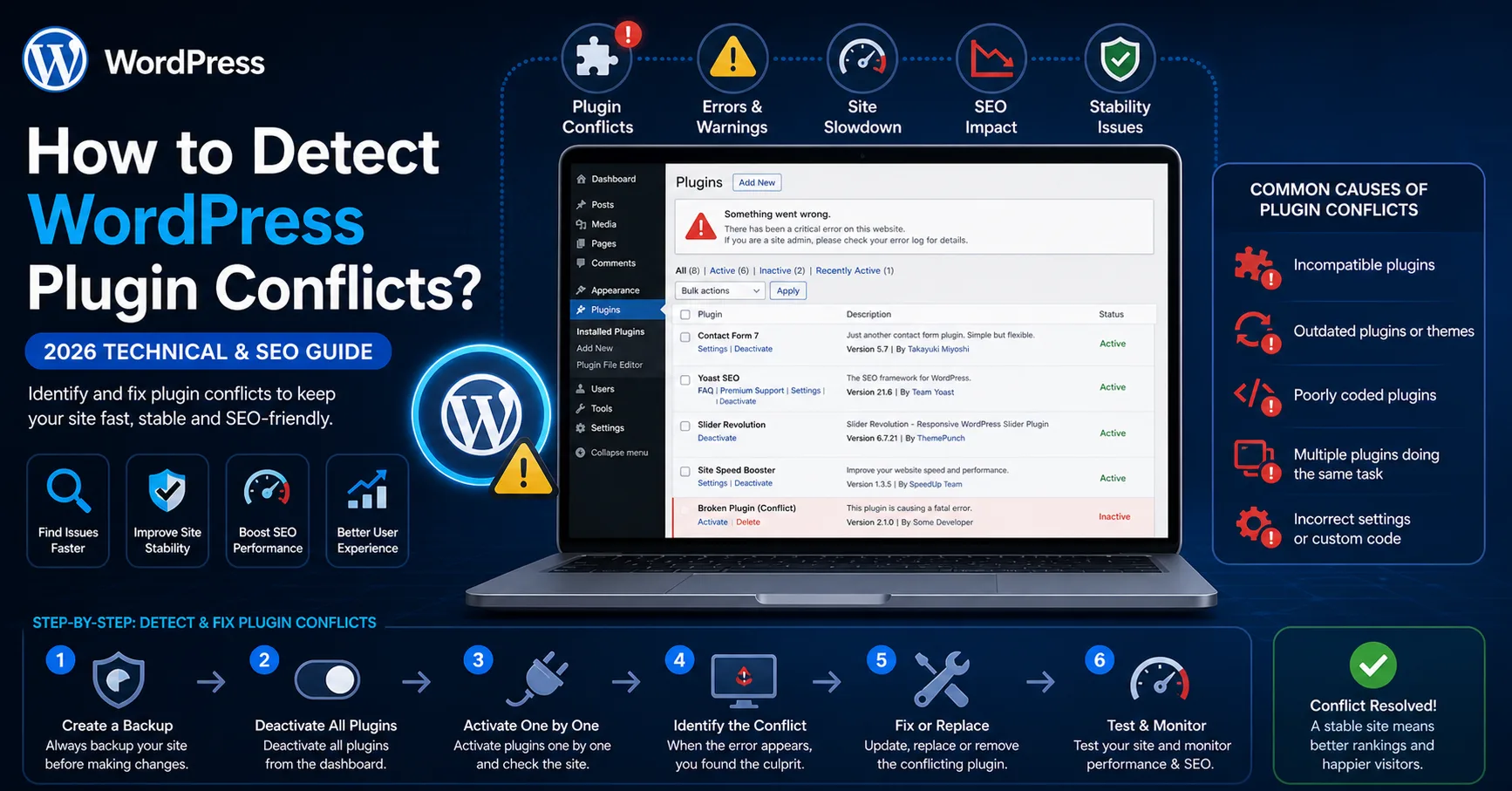
Plugin conflicts are one of the most common causes of errors, broken layouts, and performance issues in WordPress—especially on sites running many plugins.
In this guide, you’ll learn how to detect plugin conflicts, recognize the symptoms, and fix them using professional techniques.
What Is a WordPress Plugin Conflict?
A plugin conflict occurs when two or more plugins interfere with each other due to incompatible code or overlapping functionality.
Common causes:
Using the same hooks/filters
JavaScript library conflicts (e.g., multiple jQuery versions)
CSS overrides
PHP version incompatibility
Common Symptoms of Plugin Conflicts
If you notice any of the following, a plugin conflict is likely:
White Screen of Death (WSOD)
500 Internal Server Error
WordPress admin not loading
JavaScript console errors
Broken layouts/styles
Significant performance drop
Specific pages or features not working
How to Detect Plugin Conflicts (Step-by-Step)
1. Deactivate All Plugins
Go to Plugins → Select All → DeactivateIf the issue disappears, a conflict is confirmed
2. Reactivate Plugins One by One (Critical Step)
Activate plugins individually
Check the site after each activation
When the issue reappears, the last activated plugin is the culprit
3. Check Theme Compatibility
Sometimes the theme is the issue.
Switch to a default theme (e.g., Twenty Twenty-Four)
Test if the problem persists
4. Analyze Browser Console Errors
Open DevTools (F12) → Console
Example:
Uncaught TypeError: undefined is not a function
Usually indicates JavaScript conflicts or duplicate script loading.
5. Enable WordPress Debug Mode
Add to wp-config.php:
define('WP_DEBUG', true);
define('WP_DEBUG_LOG', true);
define('WP_DEBUG_DISPLAY', true);
6. Inspect Error Logs
Check:
/wp-content/debug.logYou’ll see which plugin/file triggers the error.
Advanced Detection Techniques
Use Query Monitor
Identify slow queries per plugin
Inspect hooks and actions
Script Conflict Analysis
Detect duplicate script loads
Check jQuery version conflicts
Most Common Causes
Multiple plugins doing the same job
Outdated plugins/themes
Nulled/cracked plugins
Incorrect script enqueue usage
PHP incompatibility
How to Fix Plugin Conflicts
1. Replace the Problematic Plugin
Use a well-maintained alternative.
2. Update Plugins and Themes
Keep everything up to date.
3. Advanced Code Fix (Developers)
remove_action('wp_head', 'problem_function');
4. Clear Cache
Cache plugins
CDN (e.g., Cloudflare)
SEO & Performance Impact
Plugin conflicts can:
Slow down your site
Degrade Core Web Vitals
Hurt search rankings
Cause crawl/indexing issuesProfessional Best Practices
Use minimal plugins
Avoid overlapping functionality
Prefer custom code for critical features
Test on staging before production
Conclusion
WordPress plugin conflicts can severely impact stability and performance. With the right process, you can quickly isolate and resolve issues.
Apply these steps to keep your site fast, stable, and SEO-friendly.
FAQ
Can plugin conflicts break a site completely?
Yes—especially with fatal errors.
How many plugins should I use?
As few as possible, focusing on quality.
Is it always a plugin issue?
No—themes can also cause conflicts, so test both.